
ipad
iPad Visitor Sign-In App: Setup in 5 Minutes
Install the InstaCheckin iPad visitor sign-in app, pair the kiosk to your account, and run your first check-in in about five minutes. Step-by-step.
By InstaCheckin Team Updated May 29, 2026
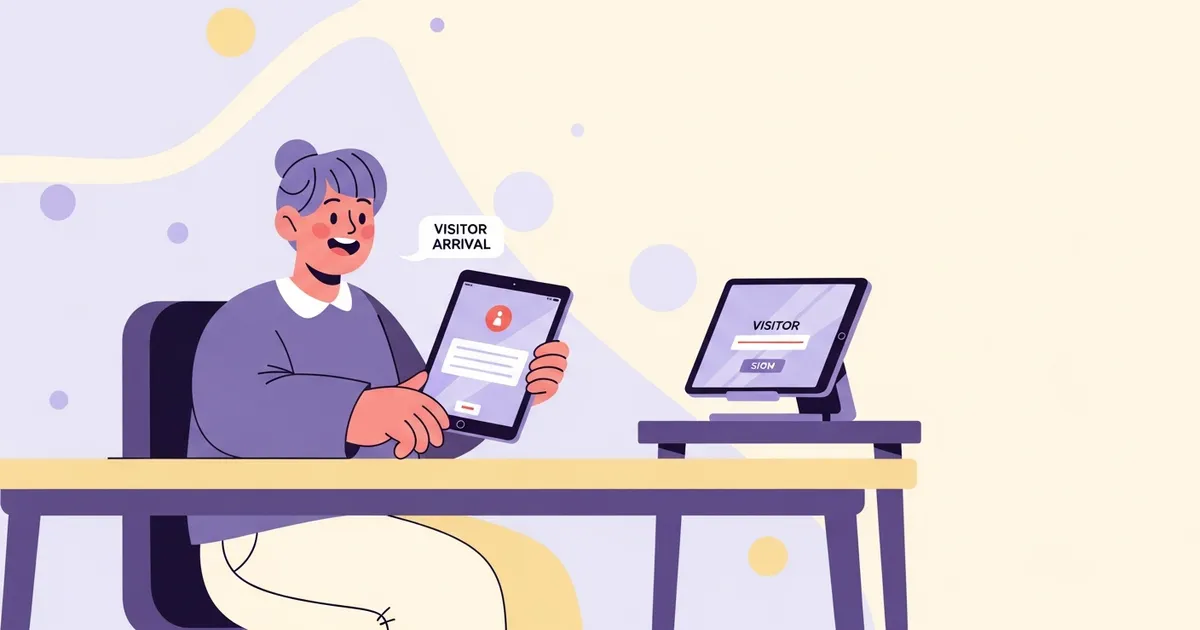
About 5 minutes — that is what it takes to go from a brand-new iPad on the front desk to a working iPad visitor sign-in app, paired to your InstaCheckin account, ready to check in your first visitor. This guide walks the whole flow: App Store install, kiosk pairing, welcome-screen branding, and a test check-in. No MDM required for the first iPad.
If you already shipped the older install-and-pair walkthrough into your bookmarks, this is the refreshed version. Same product, same two-step pair flow, plus the kiosk-mode lockdown step and the first-check-in test most teams skip.
What to have ready before you start
A few quick prerequisites. Get these in place before you tap anything on the iPad and the rest of the setup runs in one sitting.
- An iPad running iPadOS 15 or later. Any iPad sold in the last several years qualifies — iPad (6th gen+), iPad Air (3rd gen+), iPad mini (5th gen+), every iPad Pro. Supervised or unsupervised both work.
- An InstaCheckin admin account. If you don’t have one yet, you can start a free trial — it takes under a minute.
- Wi-Fi the iPad can reach. The pairing handshake and the visitor check-in flow both need network connectivity.
- About 5 minutes of uninterrupted time at the front desk.
- Optional but useful: a Brother QL-820NWB or QL-720NW label printer if you want printed visitor badges, and an iPad floor or counter stand.
That’s it. No MDM, no Apple Configurator, no Mac required for the first iPad. The advanced lockdown options come later in step 4 if you want them.
Step 1: Install the iPad app from the App Store
Pick up the iPad. Tap the App Store icon. In the search bar, type InstaCheckin and tap Search. The app is published by InstaCheckin, Inc. and the icon shows our blue door-and-checkmark logo — tap Get, authenticate with Face ID, Touch ID, or your Apple ID password, and let the install finish.
If you’d rather go straight to the listing, the App Store URL is apps.apple.com/us/app/instacheckin/id1180392524. Open it on the iPad and the App Store app handles the rest.
Once the install completes, tap Open. The first screen shows an 8-digit pairing code (it looks something like 4729-8351) — you can see this on the InstaCheckin App Store listing. That code is unique to this iPad and only valid until you pair the kiosk. Leave the iPad on this screen — you’ll come back to it in step 2.
A note on terminology: the InstaCheckin iPad app is the visitor-facing half of the product. The other half is the InstaCheckin admin portal — the web dashboard where you manage kiosks, hosts, visitors, and settings. You need both. The iPad app alone doesn’t do anything until it’s paired to the portal.
Step 2: How pairing works
Switch to a desktop or laptop browser. Sign in to the InstaCheckin admin portal at portal.instacheckin.io. From the top navigation, click Manage, then Kiosks.
This page lists every iPad kiosk paired to your account in the current location and the status of each one (online, offline, last check-in time). On a fresh account it’s empty.
In the top-right corner, click Pair Kiosk. A pairing dialog opens. Fill in three fields:
- Kiosk Name — a friendly label like “Main Lobby” or “Side Entrance — Floor 3.” This is what shows up in your dashboard and on visitor logs.
- Description (optional) — a longer note for yourself, e.g. “Counter-mounted iPad Air, replaces paper logbook.”
- Pairing Code — the 8-digit code displayed on the iPad. Type it exactly as shown.
Click Save. Within a few seconds the iPad transitions from the pairing screen to a welcome screen branded with your logo and theme color. The kiosk now appears in Manage → Kiosks with status Online.
If the pairing code doesn’t take, the most likely cause is a typo in the code. The second most likely cause is the iPad lost Wi-Fi between when the code was generated and when you submitted it — the app fetches a fresh code on every relaunch. Tap-and-hold to refresh the code on the iPad if you suspect the original timed out.
Step 3: Customizing the welcome screen
Out of the box, the welcome screen shows your company logo, a “Tap to Sign In” prompt, and your selected theme color. Most teams tune a few things before going live.
In the admin portal, head to Manage → Settings (or the kiosk-specific settings under each kiosk’s row in Manage → Kiosks). The main knobs:
- Logo and theme color. Upload a transparent PNG or SVG of your logo and pick a brand color. The kiosk picks up the change on its next refresh.
- Welcome message. Replace the default copy with whatever fits your front desk’s voice — “Welcome to Acme. Tap below to sign in.” works fine.
- Visitor fields. Toggle which fields visitors fill out: name, company, email, phone, photo, host. Skip the ones you don’t actually need; every extra field is a check-in step.
- NDA or document. Upload a PDF that visitors must scroll through and sign. Common for manufacturing, government, and ITAR-relevant offices.
- Badge template. If you have a badge printer, pick a badge layout and decide which fields print on it (name, host, photo, date).
- Host notification channels. Email and SMS are on by default. Slack and Microsoft Teams plug in via webhook if you connect them.
You don’t have to perfect this on day one. Defaults are sensible, and every setting is reversible from the portal. Start with logo + welcome message and refine after a week of real check-ins.
Step 4: Lock the iPad into kiosk mode
Right now, the iPad is paired and visitor-ready, but a curious visitor can still swipe up to the Home Screen, open Safari, change Settings, or close the InstaCheckin app entirely. Kiosk mode prevents that.
For a single iPad, the fastest path is Guided Access — a built-in iPadOS accessibility feature, no MDM, no Mac required. The full walkthrough is in our iPad kiosk mode guide, but the short version: Settings → Accessibility → Guided Access → toggle on, set a passcode, then triple-click the side button while the InstaCheckin app is open and tap Start. The iPad locks to InstaCheckin until you triple-click and end the session.
For multiple iPads — multi-site offices, fleets that need to survive reboots, anything you can’t physically touch every week — use Single App Mode, deployed via Apple Configurator 2 or an MDM like Jamf, Microsoft Intune, or Mosyle. Our iPad Single App Mode guide covers the supervision step and the .mobileconfig payload, and our Intune and Jamf walkthroughs cover the two most common MDMs.
Honest tradeoff: Guided Access is free and fast but does not survive a reboot. Single App Mode survives everything but requires the iPad to be supervised. Pick the lighter tool until you actually need the heavier one.
Step 5: Run a test check-in
Don’t skip this. Spend 90 seconds being your own first visitor before a real one walks in.
On the iPad, tap the welcome screen as a visitor would. Walk through the fields the way a guest would: type a fake name (or your own, with a (test) tag so you can find it later in the log). Pick yourself as the host if you set up a host directory. Snap the photo. Sign the NDA if you enabled one. Tap Done or Check In.
What should happen, in order:
- The iPad shows a confirmation screen (“Welcome, Jane. Your host has been notified.”) and returns to the welcome screen after a few seconds.
- The host (you) receives an email and an SMS notification (assuming the host record has both an email and a phone number). If you connected Slack or Microsoft Teams, those notifications fire too.
- If a badge printer is paired, a printed badge slides out within a few seconds.
- In the admin portal, Manage → Visitors shows the test check-in with the timestamp, host, photo, and any custom fields.
If any of those four don’t happen, fix it now while the kiosk is empty. Missing SMS is usually a host phone number that’s blank or wrongly formatted. Missing badge print is usually printer-side — check the Brother QL-820NWB Wi-Fi setup guide.
When the test check-in works end-to-end, delete the test visitor record from Manage → Visitors and you’re live.
Invite guests before they arrive: pre-registration
Most sign-in setups are reactive — a visitor walks in, fills out the kiosk, and the host gets the notification. Pre-registration flips that. From the admin portal, a host can add an expected visitor’s name, company, and arrival time before they show up. When that visitor reaches the kiosk, the system recognizes them and they skip the full data-entry step: they confirm their identity and check in faster.
Email invitations sent from the portal include the location address, expected date, and host details so the visitor knows where to go and who to ask for.
Pre-registration pays off most for:
- VIP and executive visits where a smooth lobby experience signals professionalism
- Recurring contractors who come weekly and shouldn’t have to re-enter their information every visit
- Delegations and groups — register ten visitors before they arrive instead of watching the lobby queue grow
The host still receives an email and SMS notification when the pre-registered visitor checks in. Pre-registration removes friction at the kiosk; the arrival notification still fires.
Your visitor log: what it captures and how to export it
Every check-in writes a cloud record: visitor name, company, host, arrival timestamp, photo, reason for visit, and any NDA or document the visitor signed. Records live in the InstaCheckin admin portal, not on the iPad itself — replacing or wiping the iPad doesn’t touch your visit history.
From Manage → Visitors in the portal, filter by date range, host, or visitor name. When you need to pull records for an audit, a security review, or a compliance program, export to CSV or PDF.
For regulated facilities, a clean visitor log matters:
- ITAR-adjacent manufacturing: a signed visitor log is one component of a complete program managed through the Directorate of Defense Trade Controls — knowing who was on-site, when, and under whose supervision is a baseline expectation. ITAR compliance involves more than visitor logs alone; consult your export-control officer for a full program assessment.
- Schools: controlling who can access buildings that hold student records is one layer of a responsible facility program aligned with the Family Educational Rights and Privacy Act. FERPA applies to education records, not visitor logs directly, but the line can blur — consult counsel on your specific situation.
- Any audited site: a timestamped log with signed NDAs is far easier to produce under audit than a reconstructed paper notebook.
Signed NDA documents are stored with each visit record and downloadable from the visit detail page.
Common questions on first install
The questions teams ask most often during the first hour with InstaCheckin — supported iPad models, pairing-code troubleshooting, multi-iPad deployments, badge-printer compatibility — are answered in the FAQ below this section. The recurring theme: most “is this broken?” moments on day one turn out to be either a Wi-Fi gap or a host record without a phone number.
For deeper context, our visitor sign-in system buyer guide covers the broader feature picture, and our office visitor management overview frames the front-desk pattern this app fits into. The iPad kiosk mode pillar is the canonical reference for the lockdown step in step 4.
That’s the entire 5-minute setup: install, pair, customize, lock down, test. Once the test check-in lands a notification in your inbox, the iPad is a working visitor sign-in kiosk and you can move on to the rest of your day.
Frequently asked questions
How do I install the InstaCheckin iPad app?
What iPad models does InstaCheckin support?
Do I need a supervised iPad to use InstaCheckin?
How do I pair my iPad with my InstaCheckin account?
Is the InstaCheckin iPad app free to download?
Can I use InstaCheckin on multiple iPads?
What happens after I pair the iPad? Can a visitor check in right away?
Does InstaCheckin work without internet?
Can I export the visitor log for audits or compliance?
Related reading
How To – Install and Pair InstaCheckin Visitor Registration iPad App
Visitor Registration iPad app - install and setup steps. This post describes 2 quick steps to get InstaCheckin iPad app ready to start checking in visitors.
How to Put an iPad in Kiosk Mode (2026 Step-by-Step Guide)
Learn how to put an iPad in kiosk mode using Guided Access, Single App Mode, or MDM. Step-by-step instructions for locking any iPad to a single app — no MDM required for the quick setup.
Visitor Sign-In System: What It Is + What to Look For
A plain-English guide to what a visitor sign-in system does, what it replaces, and a 7-item checklist for evaluating one for a 10–500-person office.