
ipad
Kiosk for iPad: How to Set Up a Sign-In Tablet Fast
A kiosk for iPad locks the tablet to one app so people can sign in without wandering into Settings. Here's how to set one up with Guided Access, Single App Mode, or an MDM.
By InstaCheckin Team Updated July 5, 2026
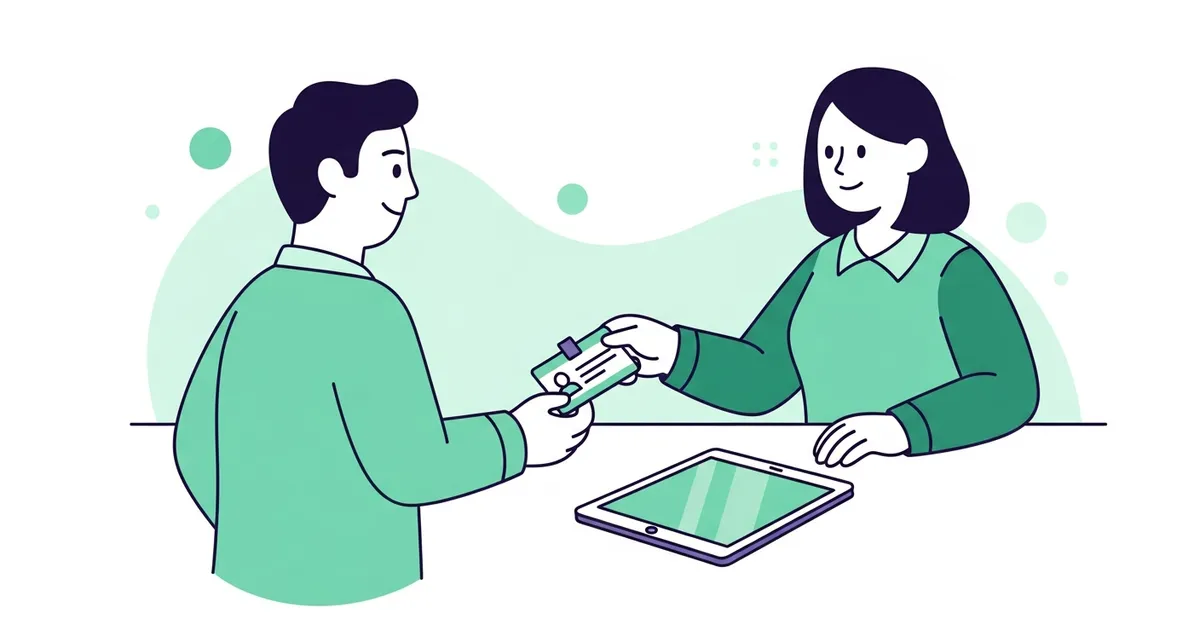
A kiosk for iPad is just an iPad locked to a single app, so nobody can swipe out of it, open Safari, or dig through Settings. That’s the whole idea. Whether it’s a visitor sign-in screen in your lobby, a feedback survey at a trade-show booth, or a self-service check-in station, the setup problem is identical: keep the iPad on one screen and out of curious hands.
There are three ways to do it. They trade convenience against how hard the lock is to break, and picking the wrong one means either a fussy daily routine for your front-desk staff or a kiosk someone can pop out of with a triple-click. This walks through all three, plus the iPad and hardware choices that actually matter.
What a Kiosk for iPad Actually Means
“Kiosk mode” isn’t a single button in iPadOS. It’s a category of settings that pin the device to one app and strip away the escape routes — the Home Screen, app switching, the volume and sleep buttons, sometimes even specific regions of the touchscreen.
The simplest version ships with every iPad. Apple’s Guided Access documentation shows how to lock the tablet to whatever app is open in a couple of taps. The heavier versions — Single App Mode and its self-locking cousin — need a supervised iPad, which is a device an administrator has prepared for organizational control. Apple’s guide to Apple device supervision spells out what supervision unlocks.
So the real question isn’t “how do I turn on kiosk mode.” It’s “how locked-down does this iPad need to be, and who’s going to babysit it.”
Three Ways to Lock an iPad into Kiosk Mode
Here’s the honest tradeoff table before the details:
| Method | Needs a Mac/MDM? | Survives a reboot? | Best for |
|---|---|---|---|
| Guided Access | No | No | 1–2 iPads, low stakes, trials |
| Single App Mode | Yes (supervised) | Yes | Permanent kiosks, fleets |
| Autonomous Single App Mode | Yes (supervised) | Yes | Purpose-built kiosk apps |
Guided Access is the path of least resistance. Triple-click the side button, tap Start, and the iPad is stuck on the current app until you triple-click and enter the passcode again. It’s free and instant to set up. The downside is real, though: it doesn’t survive a restart, so a battery drain or an accidental reboot drops the iPad back to the lock screen. Fine for a two-day event. Risky for a lobby you don’t check every morning. Our complete Guided Access setup guide covers the button-disable options most people miss.
Single App Mode is the production-grade answer. You supervise the iPad through Apple Configurator or an MDM, then push a profile that pins it to one app — and the lock re-applies itself every time the device boots. No staff intervention, ever. The cost is setup effort: you need a Mac running Apple Configurator, or a cloud MDM subscription, and a supervised device. The Single App Mode walkthrough has the full profile steps, and if you’re rolling out more than a handful, the Jamf fleet guide shows how to do it without touching each iPad.
Autonomous Single App Mode (ASAM) is the version most people actually want for a sign-in kiosk. An allowlisted app locks and unlocks itself — so it can pin the screen between visitors, then hand off to a staff-only settings view and re-lock, with nobody engaging Guided Access by hand. You still need a supervised iPad to authorize it, but after that the app runs the show. This is how dedicated kiosk apps keep an iPad locked all day without a receptionist managing it.
If you’re weighing which one fits, the iPad kiosk mode pillar guide lays out all three side by side with screenshots.
Pick the Right iPad and Mount
You don’t need the newest, fastest iPad for a kiosk. A kiosk runs one app, so an iPad Pro’s horsepower sits idle. Buy for how long the device will keep getting iPadOS updates instead — a kiosk stays bolted to a wall for years, and you want it current the whole time. A base iPad, or even a refurbished one still on the update list, is the sensible pick.
Three accessories matter more than the model:
- A locking mount or enclosure so the iPad stays put and the charging port stays covered.
- Pass-through power. A kiosk screen is on all day; set Auto-Lock to Never and keep it on a charger, or the iPad dims and sleeps on its own.
- A stable Wi-Fi spot. Wi-Fi-only iPads are fine for most lobbies. Add cellular only where your network can’t reach the front desk.
When you’re done and want to hand the iPad back to normal use, the turn-off kiosk mode guide walks through releasing every lock cleanly.
Turn a Kiosk into a Visitor Sign-In Station
A locked iPad is the foundation. What runs on it decides whether the kiosk is useful. For a front desk, the job is replacing the paper sign-in book — and a paper logbook leaks every visitor’s name to the next person who signs in, then forces your receptionist to call or walk over to the host.
A visitor sign-in app closes that gap. InstaCheckin runs on the iPad in Guided Access or Single App Mode and captures each visitor’s name, company, and reason for visit on the touchscreen, snaps a photo, and prints an adhesive badge through a Brother QL label printer. The moment a guest signs in, the host gets an email and SMS notification — no interruption at the front desk.
It can also present an NDA or safety waiver on the kiosk and capture the visitor’s signature before the badge prints, storing it with the visit record. Electronic-record and e-signature law varies by jurisdiction, so this describes a product feature, not legal advice — verify enforceability with counsel before relying on captured signatures. Every visit lands in a searchable cloud log you can filter by location, host, or date and export to CSV or PDF.
FAQ
What’s the difference between Guided Access and Single App Mode on an iPad?
Guided Access is a built-in accessibility feature that locks the iPad to one app for a single session — it’s free, works on any iPad, and doesn’t survive a reboot. Single App Mode is a managed configuration pushed through Apple Configurator or an MDM that re-applies after every restart, but it requires a supervised iPad. Guided Access is for quick or temporary kiosks; Single App Mode is for permanent ones.
Can I set up an iPad kiosk for free?
Yes, for a basic one. Guided Access is free and built into every iPad, and Apple Configurator (Mac-only) is a free way to enable Single App Mode. The costs come in with an MDM subscription — useful once you’re managing several iPads remotely — and the kiosk app itself, if you need one beyond a simple locked webpage.
How do I stop a kiosk iPad from going to sleep?
Set Auto-Lock to Never in Settings, Display & Brightness, and keep the iPad on a charger. An iPad isn’t built to run as an always-on display, so it dims and locks on its own unless you disable Auto-Lock. Guided Access and Single App Mode keep the screen awake during an active session, but the device still needs constant power.
Which iPad is best for a sign-in kiosk?
The base iPad handles a sign-in kiosk without breaking a sweat, because the workload is one app on one screen. Prioritize a model that’s still getting iPadOS updates over raw speed, and Wi-Fi-only is fine unless your network doesn’t reach the front desk. A well-maintained refurbished unit is a reasonable choice for a fixed kiosk.
Set Up Your iPad Kiosk in Minutes
You’ve got the iPad, you know which lock method fits, and you’ve picked a mount. The last piece is what shows on screen. Start a free trial of InstaCheckin, pair the iPad app, and you’ll have a working sign-in kiosk — badge printing, host notifications, and a cloud visitor log included — running on the tablet you already own.
Frequently asked questions
What does a kiosk for iPad mean?
How do I turn any iPad into a kiosk without an MDM?
Does an iPad kiosk stay locked after a restart?
Which iPad should I buy for a kiosk?
Related reading
iPad Guided Access Setup Guide for Visitor Sign-In
Lock your iPad to one sign-in app with Guided Access — no MDM, no subscription. Full setup walkthrough, passcode tips, and the reboot caveat Apple omits.
How to Put an iPad in Kiosk Mode (2026 Step-by-Step Guide)
Learn how to put an iPad in kiosk mode using Guided Access, Single App Mode, or MDM. Step-by-step instructions for locking any iPad to a single app — no MDM required for the quick setup.
iPad Single App Mode: Lock an iPad to One App
Single App Mode (SAM) is the MDM-enforced way to lock an iPad to one app — it survives reboots, resists triple-click exits, and scales across a fleet.