
ipad
Jamf iPad Kiosk Mode: Lock Down a Fleet of iPads (2026)
Jamf Pro iPad kiosk mode setup: Smart Group on supervised=Yes, Single App Mode Configuration Profile, ASAM allowlist, scope and verify the lock.
By InstaCheckin Team Updated April 17, 2026
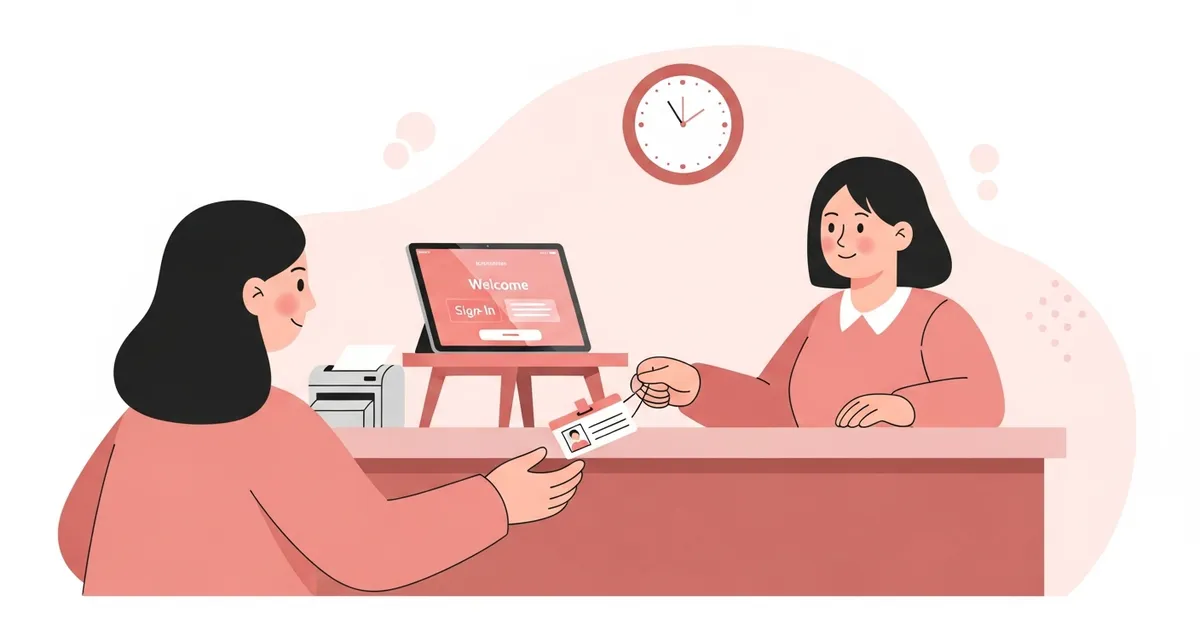
A school district running Jamf Pro across 12 buildings has 47 iPads mounted at front desks for visitor sign-in. They all need to boot directly into the visitor app, refuse to leave it, and recover from reboots without anyone walking over with a USB cable. That is the standard Jamf iPad kiosk mode deployment — once the Smart Group and Configuration Profile are set up, adding the 48th iPad takes about 90 seconds.
This post is the Jamf Pro-specific companion to our iPad kiosk mode pillar guide. The pillar covers all four kiosk-lock options at a high level. This one walks the exact Jamf Pro clickpath — Smart Group filtering on Supervised = Yes, the Single App Mode Configuration Profile, the Autonomous Single App Mode allowlist, and verifying the lock landed.
Why Jamf Pro for iPad kiosk mode
Jamf Pro is Apple’s reference MDM for fleets on Apple Business Manager or Apple School Manager. The strength over Apple Configurator 2 is scale — Configurator caps out at iPads you can physically plug into a Mac, and past about 20 devices the cable-tethering becomes the bottleneck. Jamf pushes the same Single App Mode payload over the air to every iPad in a Smart Group simultaneously.
The strength over Microsoft Intune is depth on the Apple side. Jamf has been Apple-first since 2002, ships every new iPadOS payload type within days of Apple announcing it, and exposes ASAM allowlist control as a first-class feature. Intune wins on Microsoft-365-native integration for mixed-fleet shops; for Apple-heavy fleets — most school districts, a lot of media organizations — Jamf is the right tool. Our Intune iPad kiosk mode guide covers the same workflow on the Microsoft side.
Prerequisite: supervised iPads via ABM or ASM
Jamf iPad kiosk mode does not work on an unsupervised iPad. The Single App Mode payload installs but the lock never engages — one of the most common silent-failure modes admins hit on their first deployment. Supervise the iPads first; everything else flows from that.
You have two routes. Apple Business Manager (or Apple School Manager for K-12) with Automated Device Enrollment is the production route — buy iPads through an Apple-authorized reseller that supports your ABM or ASM account, and the iPads auto-supervise on first power-on and assign themselves to your Jamf Pro instance. Apple Configurator 2 is the retrofit route for iPads you already own — connect via USB to a Mac, choose Prepare, check Supervise devices, and walk the wizard. This factory-erases the iPad.
Once supervised, the iPad’s Settings app shows “This iPad is supervised and managed by [your organization]” — that confirmation is the gate for everything below. Jamf’s Automated Device Enrollment documentation covers the ABM-to-Jamf wire-up. For how Single App Mode works independent of any MDM — including the raw .mobileconfig payload — see our iPad Single App Mode walkthrough.
Step 1: Build a Smart Group of kiosk iPads
Smart Groups are how Jamf Pro decides which devices a Configuration Profile applies to. The profile is scoped to the group, not to individual iPads, which lets you add the 48th device later without re-touching the profile.
In the Jamf Pro console, go to Devices → Smart Device Groups → New. Give the group a name that signals intent — Kiosk iPads — Lobby — and add criteria:
- Supervised is
Yes(always include this — the baseline that prevents the profile landing on personal iPads) - Asset Tag like
KIOSK-(if your asset tagging scheme uses a prefix for kiosk devices) - Site is
LobbyorFront Desk(if Sites are configured for multi-building scoping) - Model is
iPad(rules out iPhones if your tenant manages both) - Operating System Version at or above your kiosk app’s iPadOS floor
Save the group. Jamf populates membership automatically — every supervised iPad matching the criteria appears within the next inventory check-in, typically within an hour. New iPads enrolled later auto-join as soon as their inventory matches.
Verify membership before scoping a profile. Spot-check the membership tab: no rogue devices, every kiosk iPad you expect present. A Smart Group silently scoping a profile to non-kiosk iPads is the second-most-common deployment failure after missed supervision.
Step 2: Create the Single App Mode Configuration Profile
With the Smart Group ready, the next step is the Configuration Profile that carries the Single App Mode payload. In Jamf Pro, go to Devices → Configuration Profiles → New.
Give the profile a name — Single App Mode — InstaCheckin Kiosk is the kind of name your future-self will thank you for. In the Options sidebar, click Single App Mode → Configure, then add the kiosk app:
- App Name — pick the kiosk app from inventory (must already be installed on at least one iPad, or distributed through Apps and Books)
- Bundle ID — auto-fills from the app selection. The InstaCheckin iPad app’s bundle ID is
io.instacheckin.app - Disable Auto Lock — turn on (screen stays awake during business hours)
- Disable Volume Buttons — turn on for true kiosks; leave off if visitors need audio
- Disable Sleep / Wake Button — turn on to prevent mid-session sleep
The other Accessibility toggles — VoiceOver, Zoom, Invert Colors, AssistiveTouch — should generally stay off for visitor sign-in kiosks. They expose behavior visitors do not need.
While you are in the profile editor, add a Restrictions payload too. Single App Mode by itself does not block screenshots, AirDrop, AirPrint, Siri, iCloud Backup, or App Store access — the Restrictions payload is what closes those gaps. Jamf’s Configuration Profile reference documents every payload type.
Step 3 (optional): The ASAM allowlist
Autonomous Single App Mode (ASAM) is a variant where the kiosk app self-locks and self-unlocks through the iPadOS API. The iPad still has to be supervised and the MDM still pushes a profile, but the profile is an allowlist — it names the bundle IDs allowed to call into Single App Mode programmatically.
ASAM matters when the kiosk app has a staff-override flow. The app locks itself for routine use; staff trigger an admin-login that exits ASAM, lets staff change settings or pull data, and re-locks the iPad on the way out. Without ASAM, every staff override would require an admin to remove the Single App Mode profile from the device’s scope and re-add it after.
In Jamf Pro, the ASAM payload is also at Devices → Configuration Profiles → New, but you select the App Lock payload (the same com.apple.app.lock payload type as Single App Mode) and list the bundle IDs allowed to enter and exit single-app behavior on their own. Add the kiosk app’s bundle ID and save.
For most visitor sign-in deployments, ASAM is the right pattern. Hard Single App Mode is friction every time staff need to do something administrative. If the kiosk app supports ASAM — InstaCheckin’s does — turn it on.
Step 4: Scope, deploy, verify, and troubleshoot
With the Smart Group built and the profile authored, the last step is wiring them together. In the profile editor, click the Scope tab. Under Targets, click Add and select your kiosk Smart Group. To exclude specific iPads — a test device, a spare — add them under Limitations or Exclusions.
Save. Jamf Pro pushes the payload to every iPad in scope at the next check-in (default 15-minute interval). Force an immediate push via Send Blank Push or MDM Command → Update Inventory.
Verify on a sample iPad:
- The iPad reboots into the kiosk app. Force a reboot from the device record. It should land on the kiosk app within a few seconds of the lock screen.
- The Home indicator and Control Center are unreachable. Swipe gestures do nothing. The visitor cannot leave the app.
- The profile is visible in Settings → General → VPN & Device Management. Two profiles are listed — Single App Mode and Restrictions — both signed by your Jamf Pro instance.
If any of those checks fail, the most common causes are a non-supervised iPad in scope (check the Smart Group), a wrong bundle ID (re-verify against the app’s Info.plist), or the iPad has not checked in yet.
Troubleshooting common failures
A handful of failure modes show up over and over. Knowing the symptom maps to the cause saves a lot of second-guessing.
Device not enrolling. The iPad boots through Setup Assistant but never appears in Jamf Pro. Almost always an ABM or ASM linkage problem — the iPad’s serial is not assigned to your MDM server, or the ABM-to-Jamf token expired. Confirm assignment in ABM and verify Settings → Server Tokens in Jamf Pro is current.
Profile pending. The profile shows in the device record but never installs. Either the iPad has been offline since the push or the profile references an app not yet distributed to the device. Check Devices → Inventory → [device] → History → Management History for the actual MDM error.
App not launching after the lock applies. The iPad reboots to a black screen or the Home Screen instead of the kiosk app. The bundle ID is wrong or the app is not installed. Re-confirm the bundle ID (case-sensitive) and that the app appears in Inventory → Apps for that device.
Exit-without-passcode recovery. Single App Mode does not use an end-user passcode. The exit is admin-driven — remove the profile from scope or push a profile update with Single App Mode turned off. If the iPad is offline, tether it to a Mac running Apple Configurator 2 and choose Actions → Advanced → Stop Single App Mode. Force-restart does not exit the lock; the iPad reboots back into the kiosk app, which is the feature, not a bug.
A worked example: visitor sign-in iPads at a 12-building school district
Here is the end-to-end flow for a real Jamf-managed deployment. A K-12 district wants 47 supervised iPads — one at each front desk plus a spare in each building’s IT closet — locked into a visitor sign-in app and surviving reboots unattended.
- Enrol all iPads through ASM Automated Device Enrollment. New iPads from the Apple-authorized reseller auto-supervise and auto-assign to Jamf Pro. Existing iPads get retrofitted with Apple Configurator 2.
- Build a Smart Group
Kiosk iPads — Front Deskwith criteriaSupervised = YesandAsset Tag like KIOSK-. The district tags every kiosk iPadKIOSK-{building}-{number}during intake, so the group auto-populates. - Distribute the visitor sign-in app through Apps and Books in ABM, scoped to the same Smart Group. The app silently installs as iPads join.
- Author the Single App Mode Configuration Profile with bundle ID
io.instacheckin.app, plus a Restrictions payload blocking screenshots, AirDrop, AirPrint, App Store, and iCloud Backup. - Add the ASAM allowlist payload so the visitor app can self-unlock for staff overrides without an admin touching the profile scope.
- Scope both profiles to the Smart Group. Within an hour every supervised front-desk iPad reboots into the visitor app and stays there.
- Defer iPadOS updates through Jamf Pro’s Software Updates feature until district IT has validated the visitor app against each release.
- Document the exit path with each building’s facilities lead — which Jamf admin can remove the profile, and where the backup Apple Configurator 2 laptop lives.
For a product-level overview of what the visitor sign-in flow does once the iPad is locked, see our school visitor management system page. The same Jamf workflow applies one-to-one to corporate deployments — the office visitor management system page covers that variant.
Once the Smart Group, Configuration Profile, and ASAM allowlist are wired up, adding the 48th iPad is a matter of asset-tagging it, enrolling it through ASM, and waiting for the next inventory check-in. The compliance burden lives in the profile, not in any individual device — that is the leverage Jamf Pro gives a fleet admin over Apple Configurator’s per-device cable tether.
Frequently asked questions
Can Jamf push iPads into kiosk mode?
Do I need supervision for Jamf kiosk mode?
What's the difference between Jamf Now and Jamf Pro for kiosks?
How do I exit Jamf-deployed kiosk mode?
Can Jamf use ASAM with a third-party kiosk app?
What Smart Group criteria should I use for kiosk iPads?
Will Jamf-deployed Single App Mode survive an iPadOS update?
Related reading
Intune iPad Kiosk Mode: Step-by-Step Setup for M365 Admins
Set up Intune iPad kiosk mode end to end — ABM enrollment, the admin-center clickpath for the Single App Mode payload, scoping, and troubleshooting.
How to Put an iPad in Kiosk Mode (2026 Step-by-Step Guide)
Learn how to put an iPad in kiosk mode using Guided Access, Single App Mode, or MDM. Step-by-step instructions for locking any iPad to a single app — no MDM required for the quick setup.
iPad Single App Mode: Lock an iPad to One App (2026)
How iPad Single App Mode works, how to set it up with Apple Configurator or an MDM, the .mobileconfig payload, and the right way to exit it cleanly.